Deploy a project
To deploy, you give livemy.app your app in one of three ways. It then scans your code, provisions an isolated container, and an AI agent builds and starts your app — until it’s live at a public URL.
Ways to deploy
Section titled “Ways to deploy”Select New project to start, then choose a source.
Upload an archive
Section titled “Upload an archive”Drag an archive onto the uploader, or click to choose a file. Supported formats
are .zip, .tar, .tar.gz, .tgz, .rar, and .7z, up to 100 MB. After you
pick a file, start the deploy — the archive uploads and the deploy begins.
Connect a Git repository
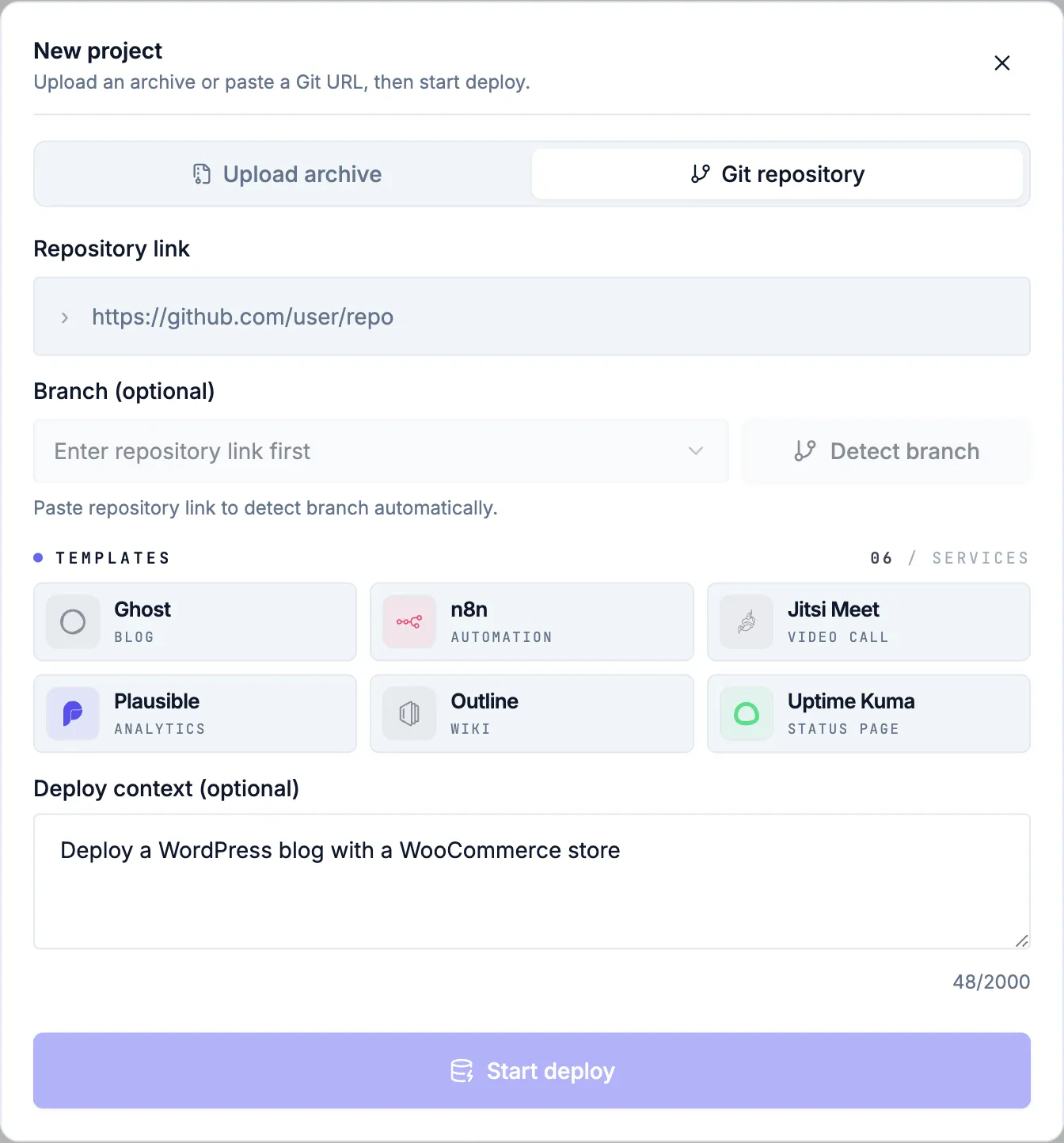
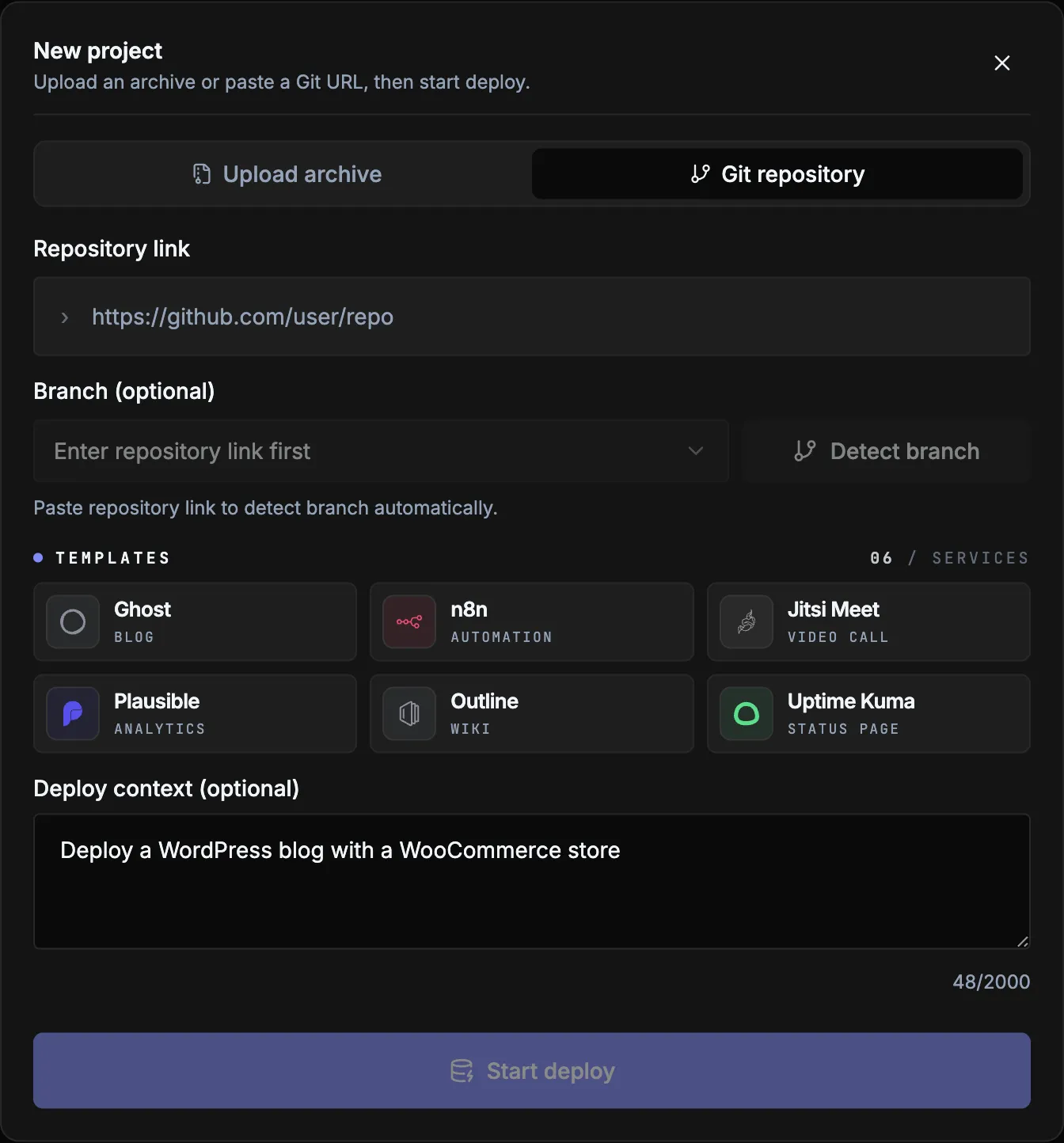
Section titled “Connect a Git repository”Paste a repository link (for example https://github.com/user/repo). livemy.app
supports GitHub, GitLab, Bitbucket, Gitee, Codeberg, and SourceHut. You can
optionally choose a branch — detect it automatically or pick one from the list.
Private repositories are supported too. When you paste one, livemy.app asks you to grant read access — authorize with GitHub, or paste a read-only access token. See Connect a private repository.
Start from a template
Section titled “Start from a template”Pick one of the ready-made templates — a blog, an automation tool, analytics, a wiki, and more — to try the flow with a working app. Selecting a template fills in the repository and a suggested deploy context for you.
Describe what you want (optional)
Section titled “Describe what you want (optional)”The Deploy context field lets you tell the AI agent what to do — for example “Deploy a WordPress blog with a WooCommerce store” or “create an owner account.” Leave it empty to let the agent deploy with sensible defaults.
What happens during a deploy
Section titled “What happens during a deploy”-
Fetch your code. livemy.app clones your repository or unpacks your archive.
-
Scan. Your code is checked for malware before anything runs.
-
Set up. An isolated container is provisioned for your project.
-
AI deploys. The agent installs dependencies, builds your app, and starts it — working through problems as it goes.
-
Go live. Your project gets a public URL.
Progress updates live, step by step. You can select Stop deploy at any time to cancel — see Track a deploy for what you see while it runs.
When your app is live
Section titled “When your app is live”Your project shows its public URL — open it in a new tab or copy it. A Deploy report summarizes what the agent did, and from here you can start another deploy or delete the project.
Related
Section titled “Related”- Track a deploy — follow progress and read the deploy report.
- Connect a private repository — authorize with GitHub or paste a token.
- Deploy your first app — the quickstart walkthrough.
- Core concepts — projects, deploys, and states.